SSIS Data Taps

An interesting feature that is new with SSIS 2012 is data taps. Imagine you are troubleshooting an issue in your data flow. If you are like me, you enable data viewers to help you troubleshoot. Maybe you need to check the results of a derived column or see if a look up value was found. A data tap works like a data viewer except that the data is exported to a file and the package that you are running has been deployed to the SSIS catalog.

The command to add a data tap is part of the new T-SQL syntax for running SSIS packages. To get started learning about data taps, make sure you are using SQL Server 2012 or 2014 and have deployed your package using the new Project Deployment Model to the SSIS catalog. I created a project with one package that just exports a table to a file. Here’s how my Data Tap project looks in SSMS.
datatap1

To use a Data Tap, you have to write a script to run the package. Right-click on the package name and select Execute to bring up the Execute Package dialog box. Add any parameters and make any other configuration changes you need to make and click Script. My sample package doesn’t have any parameters or anything to change.

The script generated is the code required to execute the package from within T-SQL (no xp_cmdshell required!).

Declare @execution_id bigint
EXEC [SSISDB].[catalog].[create_execution] @package_name=N’Package.dtsx’,
@execution_id=@execution_id OUTPUT, @folder_name=N’DataTap Example’,
@project_name=N’DataTap’, @use32bitruntime=False, @reference_id=Null
Select @execution_id
DECLARE @var0 smallint = 1
EXEC [SSISDB].[catalog].[set_execution_parameter_value] @execution_id, @object_type=50, @parameter_name=N’LOGGING_LEVEL’, @parameter_value=@var0
EXEC [SSISDB].[catalog].[start_execution] @execution_id
GO

If you have added parameter values or made other configuration changes, you will see additional lines of code setting those up.

You have your choice of two procs to add the Data Tap: add_data_tap_by_guid and add_data_tap. To supply the values for all of the parameters, you’ll need the package in design mode available to you. Here is the add_data_tap command we’ll insert before the start_execution line.

EXEC [SSISDB].[catalog].add_data_tap @execution_id = @execution_id,
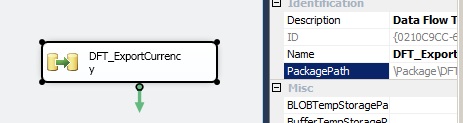
@task_package_path = ‘\Package\DFT_ExportCurrency’,
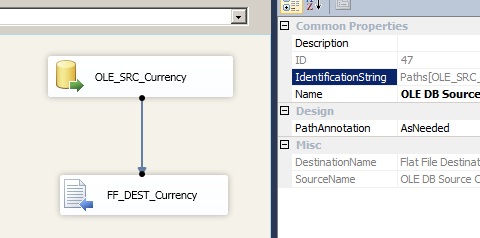
@dataflow_path_id_string = ‘Paths[OLE_SRC_Currency.OLE DB Source Output]’,
@data_filename = ‘output.txt’

Except for @execution_id, how in the world did I come up with the parameter values for the data tap? Go back to the package in VS and take a look at the properties of the Data Flow Task – not the Data Flow layer, the F4 properties. Find the PackagePath property. That is the @task_package_path value as shown here.
datatap2

Now double-click the Data Flow Task and find the data flow path where you would like to see the data exported. Take a look at the IdentificationString property. That is the @dataflow_path_id_string value. Finally, you need a name for the file.
datatap3

You may wonder where the file actually ends up since only a file name is needed. If everything works as expected, the file will end up at \Microsoft SQL Server\110\DTS\DataDumps or \Microsoft SQL Server\120\DTS\DataDumps.

There is also an optional parameter to limit the number of rows exported with the @max_rows parameter.

Next week I’ll post an article explaining why you might want to use the add_data_tap_by_guid function.

I’m having a great time exploring all the 2012 SSIS changes. How about you?
Posted in SSIS | Leave a comment

SSIS 2012

SQL Server 2014 was released earlier this month. There was an extensive overhaul of SSIS in 2012, but nothing new in 2014. It’s a good bet that most shops are still running 2008 or 2008R2, so many of you haven’t seen the changes from 2012. The lucky thing is that the skills you have from earlier releases of SSIS will transfer to 2012.

I have divided the 2012 enhancements and features into several categories:

  • Cosmetic
  • Convenient
  • Development
  • Deployment
  • Logging and troubleshooting

Cosmetic

There are quite a few things that work the same in SSIS 2012 but don’t look the same. The first, and a disappointment to me, is that the development tool is no longer called BIDS. It is now SQL Server Data Tools, or SSDT. BIDS is just so much easier to say, but changing the name of products is the popular thing to do at Microsoft.

The original SSDT that you install with the SQL Server 2012 media works with Visual Studio 2010. If you are interested in running it in Visual Studio 2012, you can download the appropriate SSDT BI here. Things get better, I promise, but this version has the Metro-look with basically one color. I am using that version at my current customer, and I find it more difficult than the VS 2010 version to work with visually.

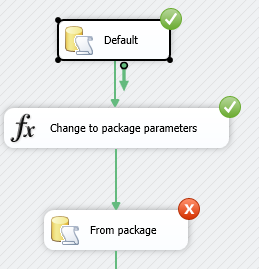
ssis1The next cosmetic thing is the amazing rounded corners of the icons. Again, this change makes no difference in how you work. The status icons have changed. They are now located at the top right of the task or component.

If you take a look at a data flow, you will also find that the green connectors are now blue. Again, it really doesn’t make any difference in how you work.

Another change that is more cosmetic, is the new SSIS Toolbox. If you just look for the Toolbox in the View menu, it will be empty.  If you right-click in the design area or click the new SSIS Toolbox icon in the upper right area , you will ssis2open it up. There are several sections to the new toolbox and you can move the items around if you wish.

ssis3

Convenient

While the Cosmetic changes are nothing to be that excited about, the Convenient changes are things we have been asking about for years. The two biggest bug fixes enhancements are Undo/Redo and paste functionality that doesn’t put your pasted task in a different county.

When working with SSIS 2012, you need to start thinking in terms of projects instead of packages (more on this later).  You can add connection managers at the project or package level. When you add the connection manager to the project level, all of the packages in the project automatically inherit it. So, going forward, start adding connection managers at the package level only if they are specific to that package. When you do add a connection manager at the package level, you can right-click and promote it to the project level. That’s convenient!

One of the biggest headaches when working in the data flow is when a change is made at a source which makes the following destinations blow up. In previous versions of SSIS, you would get an ugly dialog box that was difficult to understand. Now you can easily fix mapping issues in the data destination or with the new Resolve References dialog found by right-clicking the connector.

ssis4

You drag the column names from the edge lists into the mapping area in the center.

One convenient new feature is a new symbol next to connection managers, variables and tasks denoting that an expression is used for one of the properties. This is going to save some troubleshooting time!

ssis7Speaking of variables, there is now a built-in way to move variables to a different scope and to see all variables at once regardless of scope.

One more convenient change: two-clicks to enable a data-viewer instead of five or six.

Development

There is not much to talk about in this category. If you use Change Data Capture (CDC), there is a new CDC Control task, a CDC Source and a CDC Splitter transform. These will make working with CDC easier and eliminate most of the coding. You also get CDC for Oracle. In addition, there is a control that works with the new Data Quality Services.  One new task that I really love is the Expression Task. It allows you to easily assign a value to a variable when none of the other methods will work.

Deployment

By far, this is the category with the most extensive changes. Beginning with 2012, there is a new way to work with SSIS called the Package Deployment Model. I recently presented an hour webinar just on SSIS deployment. Without going deep into this topic, here are the highlights:

  • The project is now the unit of work instead of the package when it comes to deployment
  • The Project Deployment Model uses the new SSIS Catalog
  •  You can deploy the project from VS using a wizard. You supply just the server name and folder.
  • Building the project creates an ISPAC file. This file has everything required to deploy the project.
  • Instead of configuration files, the Catalog stores configurations.
  • You can set up one or more Environments to store the values, like server names, for configuration.
  • Parameters, variables that are read-only inside the packages, are used to pass configuration values into the packages.
  • You can use a new version of dtexec to run the packages, but there is also a new set of T-SQL commands for running packages.

Logging and Troubleshooting

If you deploy with the new Project Deployment Model, you get logging by default. The level of logging is configurable at the server, project, package or execution level. A built-in set of reports lets you view execution results. You can also download a Reporting Pack if the built-in reports do not meet your needs.

On the trouble-shooting side, is the new Data Tap feature. This feature saves a copy of the data the way it looks at a point in the data flow. This is like a Data-Viewer except that it happens when the package is deployed and a physical file results. I’ll post two blogs on this topic soon!


Posted in SSIS | 5 Comments

New WIT Chapter in Denver!

I attended my first PASS Summit over 10 years ago, back in 2003. It was a wonderful week, but as a newbie who knew no one there, I missed out on a lot of the fun. I attended the Tuesday night opening event, but I didn’t know about the majority of evening activities. I am really glad that PASS is now making a big effort to ensure that the “first timers” have a great experience.

That first year I attended lots of sessions. Two things stand out from the Summit in my memory: The SSRS announcements and the Women in Technology Luncheon. The WIT luncheon was lots of fun. It was great hearing from some women who had accomplished so much and were willing to share their experiences. Another interesting thing about that lunch is that the only men I noticed in the room were part of the convention center staff serving the lunch.

Each year, the WIT session grew with more people attending and eventually, not only including many men in the audience, but also on the panel. In 2013, there were actually two guys on the panel, Kevin Kline and Rob Farley. The recording is available here. The thing is, men have many of the same challenges that women have in IT  such as improving negotiating skills and figuring out how to deal with responsibilities outside of work. Some of them also have daughters, and they want to find out what they can do to encourage their daughters to consider technology careers.

Jessica and meIn 2009, I was honored to be part of the WIT panel at the Summit. I felt like I had finally made it in the SQL Server community. A few months later, John Magnabosco contacted me about the Indy TechFest event. He invited me to speak at the event and wondered if I would be interested in having a session with Jessica Moss modeled after the WIT Luncheons at Summit. Jessica and I both thought it was a great idea and the WIT Community Outreach, part of the PASS WIT Virtual Chapter, was born. Since then, I have hosted numerous WIT sessions at SQL Saturdays around the country. I have also coached others to organize WIT sessions as well. (To have me help in this way at your event, please fill out the contact form!)

The WIT Virtual Chapter has been around for several years. I would like to announce that PASS has its first physical WIT chapter. Windy Martin has organized the WIT chapter in Denver. This chapter is dedicated to supporting women in the SQL Server community in Denver. They hosted a kick-off party on April 9th, and the first regular meeting will be May 14th. I am very happy to announce that I will be the featured speaker at the first meeting!

My plan is to give a TED-like presentation. I’ll talk about how I got to where I am today and what I really think about being a woman in technology. After that session, we are going to have a discussion similar to the WIT sessions we have had at Summit and at SQL Saturdays in the US and around the world.

If you happen to be in the Denver area on May 14th, we would love to have you attend this inaugural meeting – and men are most certainly welcome to attend!


Posted in Life in IT | Leave a comment